License requirement
The functionality described requires a MANUS Bodypack or a MANUS license key with the Recording and Exporting features enabled.
Using
This article will guide you through the proces of capturing en exporting a recording using Shogun Live and Manus Core and merging the hand and body data afterwards in Shogun Post.
Capturing
To ensure a smooth merging process, follow these recommendations during the data capturing phase:
Recommended Capture Method
Setup Vicon Shogun Live to broadcast capture and select Vicon as the remote trigger. MANUS Core will then automatically start, stop and save. The recordings will be saved in the capture folder specified in Shogun Live. Make sure the folder specified in Shogun Live actually exists.
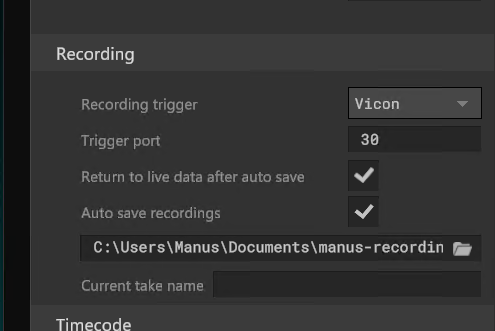
More information on remote triggers.
Naming Conventions
For convenience, name the user(s) in MANUS Core identically to the subject(s) in Shogun. This helps streamline the merging process.
Timecode Usage
It's recommended to use timecode to ensure that the recordings are synchronized between Shogun and MANUS Core.
Exporting for Merge
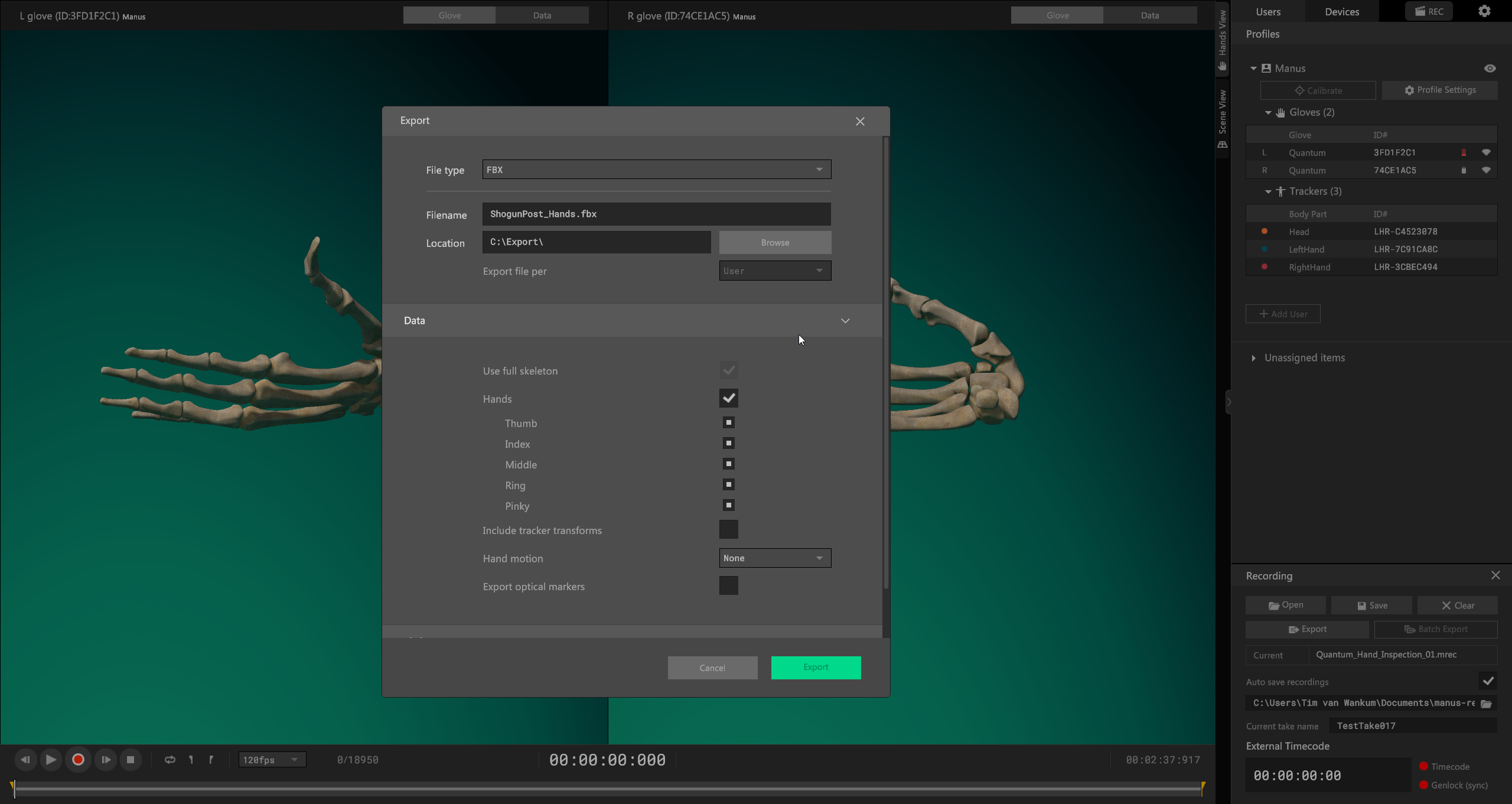
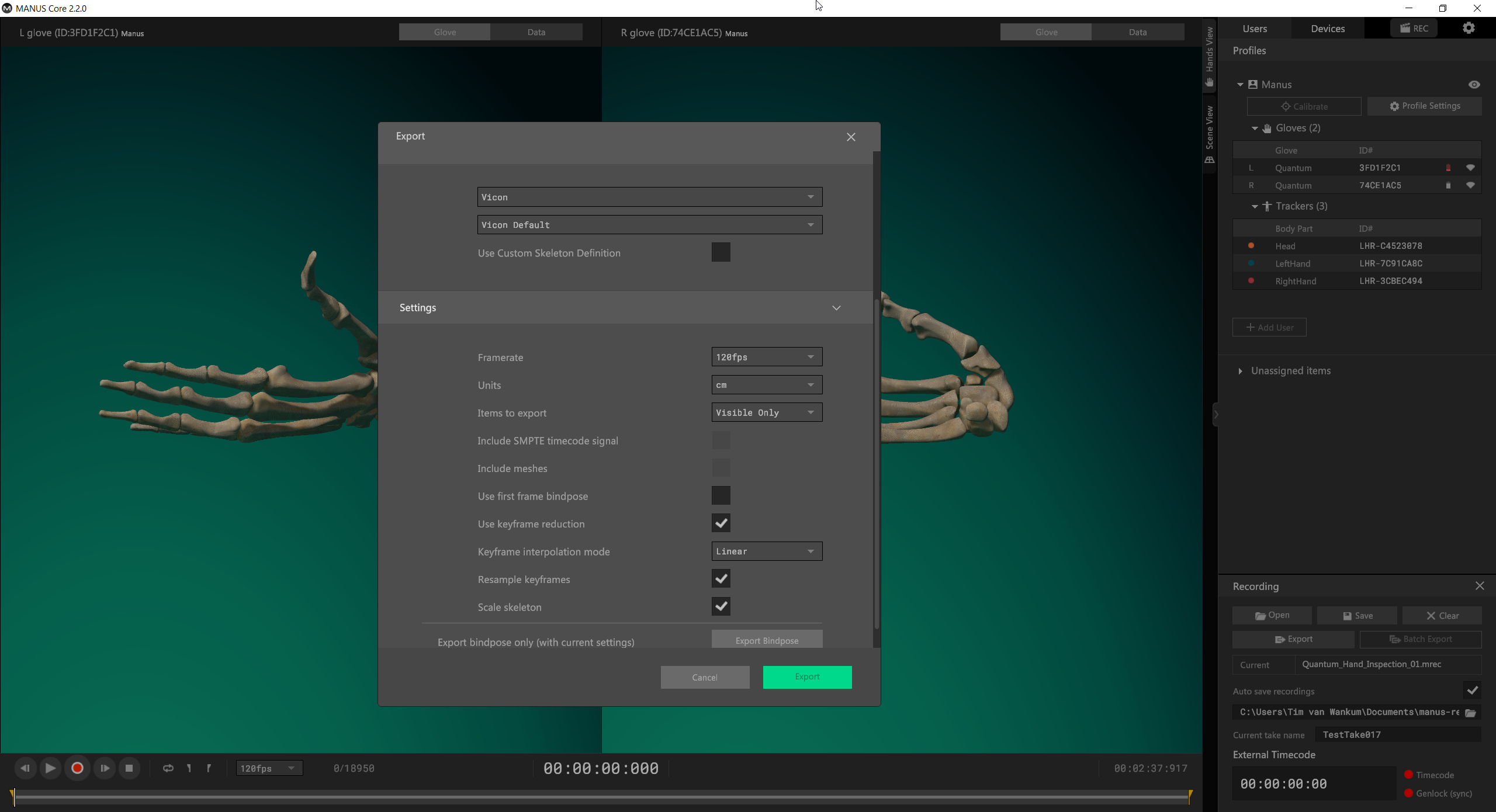
Configure the following export settings to prepare your data for merging:
Export Settings
- Export file per
User. - Export the full skeleton.
- Hand Motion set to
None. - Skeleton format to
ViconandVicon Default. - Match the export framerate with the Vicon body recording you intend to merge.
- If both Shogun and MANUS Core recordings are time-coded, include the SMPTE timecode signal.
- Units should be set to
cm. - Do not use the first frame as the bind pose.
- Keyframe reduction and resampling of keyframes are recommended for smoother merging.
Merging in Shogun Post
Follow these steps to merge the MANUS glove data with your Shogun Post data:
Open the Desired Take
Launch Shogun Post and open the take that you want to merge with MANUS data.
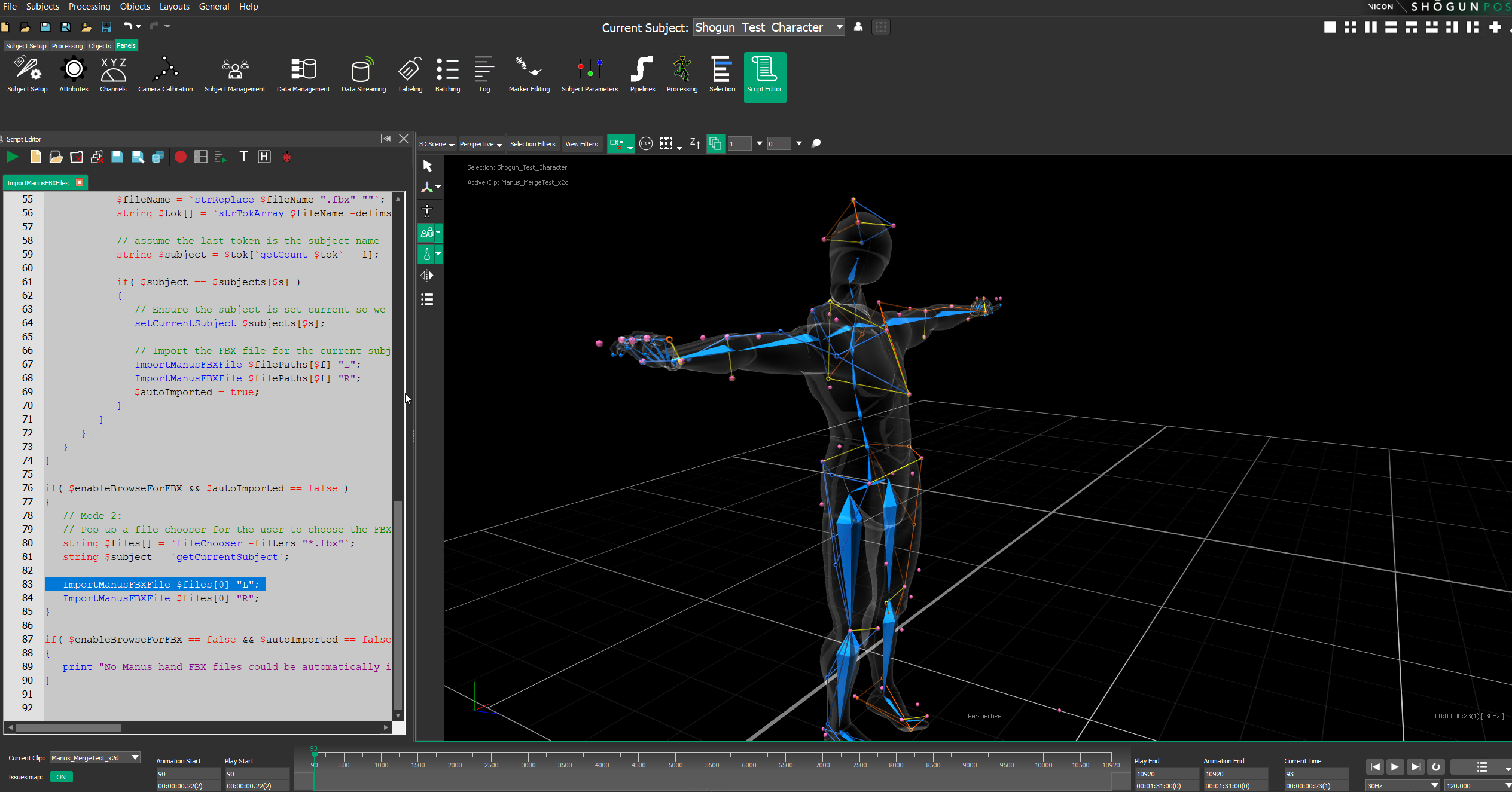
Access Script Editor
Navigate to the script editor within Shogun Post.
Open Existing Script File
Select Open existing file and locate the ImportManusFBXFile.hsl script file from the installation folder.
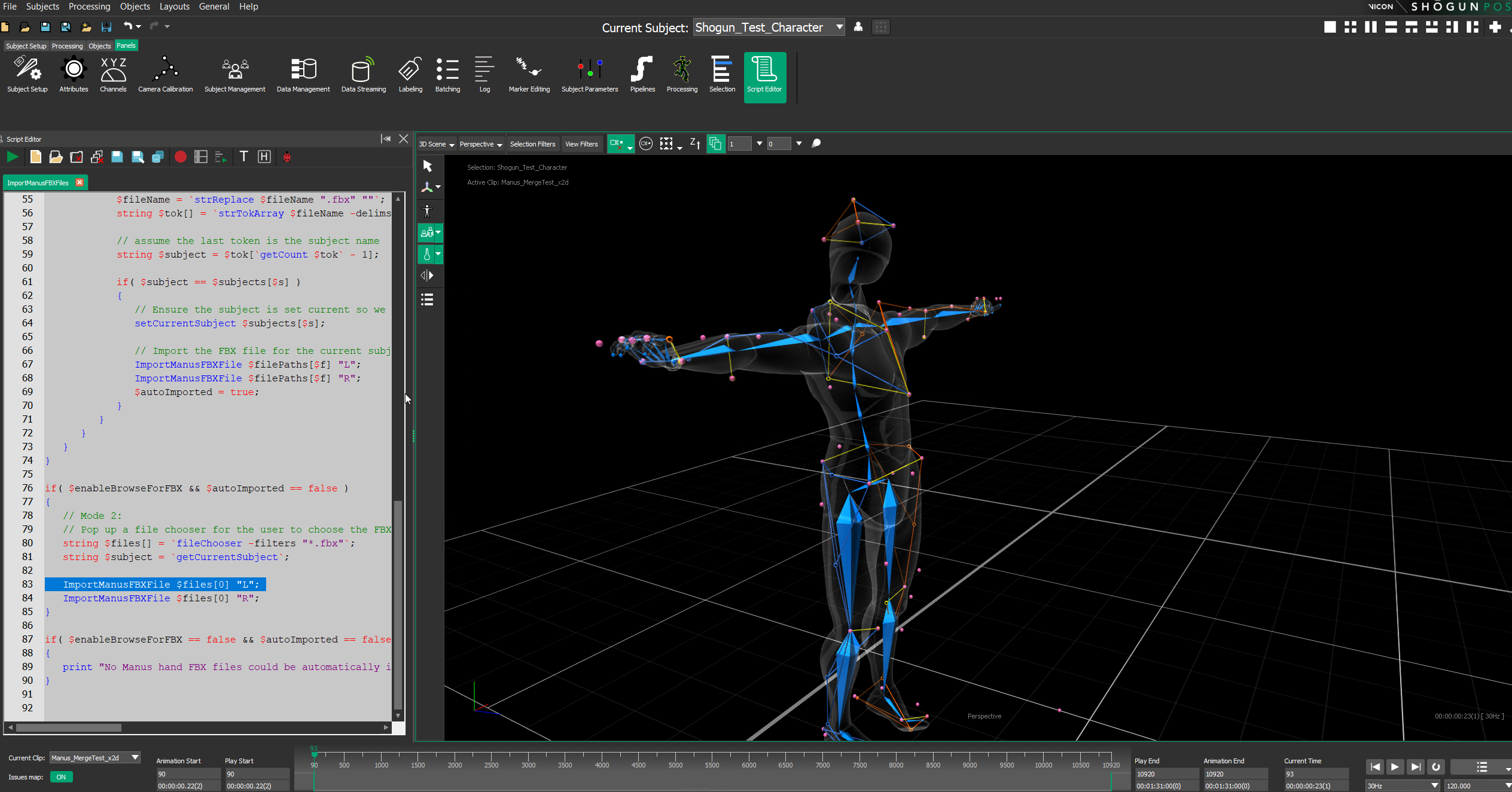
Select the Subject
Ensure that the subject in Shogun Post, which you want to merge, is selected.
Run the Script
Execute the script, and a dialog box will appear, prompting you to select the MANUS exported FBX file.
Select the MANUS Exported FBX
Choose the appropriate MANUS exported FBX file from your storage.
Processing and Stitching
Allow the script to process and merge the hand data onto the body data in Shogun Post.
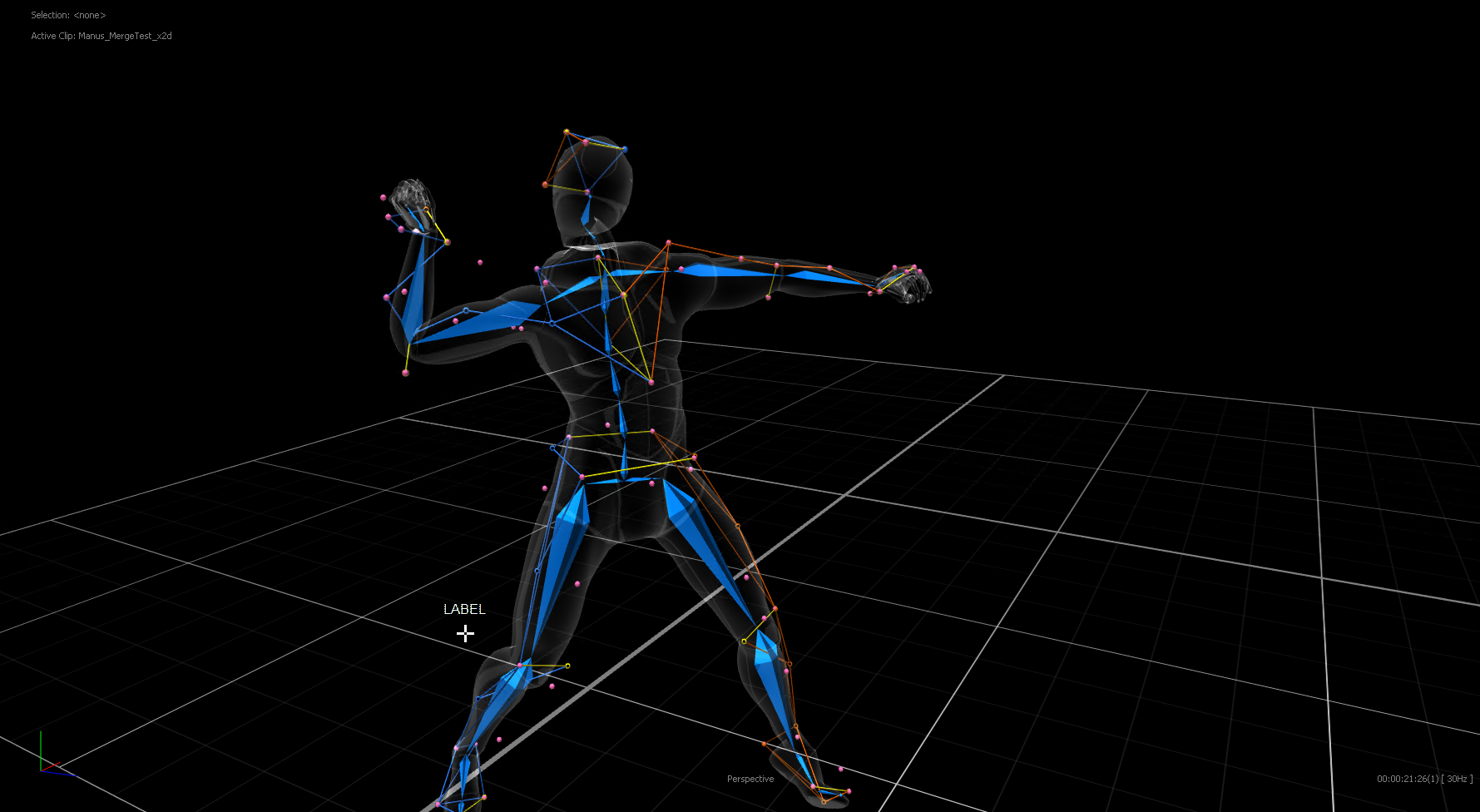
Review
Your hand data should now be merged onto your body data.
Adjusting hand rotation
If hand rotations do not match up with the skeleton, you can adjust/uncomment the code on lines 126-146 of MergeManusHand.hsl to fine tune it.
Also a geometry twist can be easily applied by uncommenting lines 172-186 of MergeManusHand.hsl.
Import multiple files
If, in the same folder as the open take, there is a sub folder of the same name which contains FBX files captured by Manus Core, the ImportManusFBXFiles.hsl script will import the FBX files for each subject's hands. For the file to be matched, the script assumes the FBX files are named with the actor / subject name as the last part of the name, following an underscore.
If the sub folder is not present, the ImportManusFBXFiles.hsl just behaves like the ImportManusFBXFile.hsl as described above.